
Wix Checkout Abandonment Workflow
Shipping cost is the number one reason why users abandon checkout. To recover this group of users, you can use checkout abandonment workflow.
Tip: Use discount code to recover users who've abandoned checkout. Even a $1 discount works more than you could imagine.
In this guide, we'll show you how to setup a Wix Checkout Abandonment Workflow.
How OnVoard identify checkout started user for Wix?
Checkout started will be triggered when identifiable user (like logged-in user) loads cart or checkout page when there are at least 1 item in cart. Loading cart page also triggers checkout started event because Wix allows paypal checkout, which will skip checkout page.
Before you Begin
- Ensure that web tracking is installed and
Checkout Startedactivity is tracked. - Disable Wix's abandoned cart emails to prevent sending redundant emails.
- Understand difference between checkout abandonment and cart abandonment.
- To track checkout abandonment for Wix, users must be logged in to your site. Anonymous users can't be tracked.
Setting up Workflow
Select Workflow Playbook
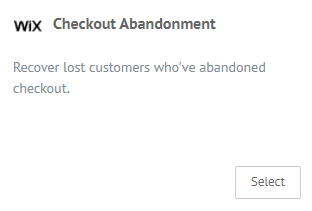
Go to workflow playbooks page and select Checkout Abandonment playbook for Wix.
Workflow Configurations
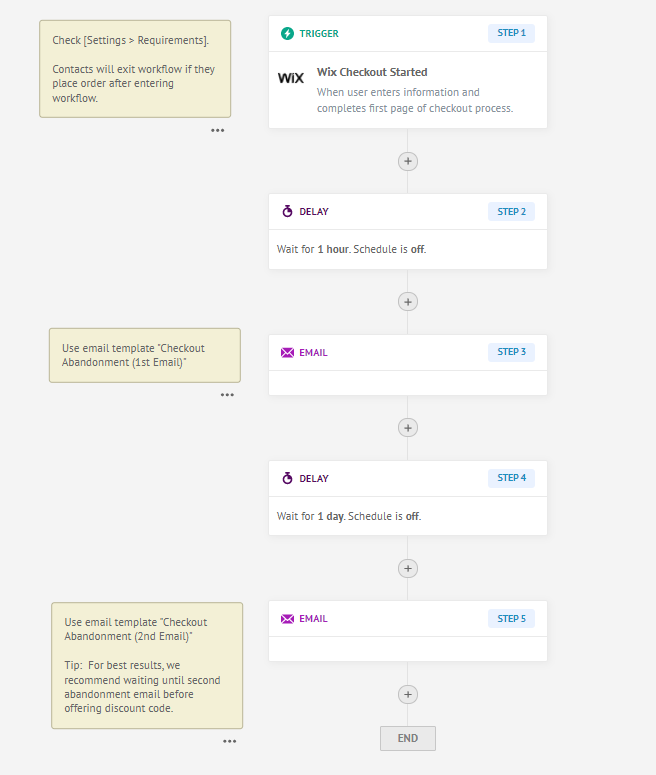
In this workflow, we will send up to 2 abandonment emails to contact.
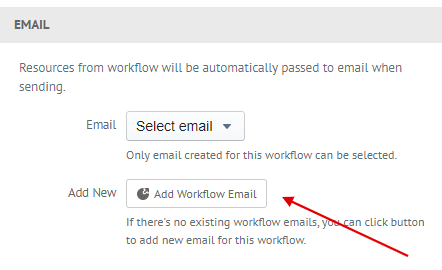
- Select Email (Step 3)and add new email with using template "Checkout Abandonment (1st Email)" email template
- Select Email (Step 5) and add new email with using template "Checkout Abandonment (2nd Email)"
Click Submit to create workflow. That's it, setting up Checkout Abandonment Workflow is easy when you are creating from playbook.