
Install AOV Progress Bar on Shopline
Install AOV Progress Bar App
Shopline merchants can use AOV Progress Bar extension by installing the app from Shopline app store.
Setup AOV Progress Bar
Go to overview page and add a new AOV progress bar.
Multi-Tiers Discounting
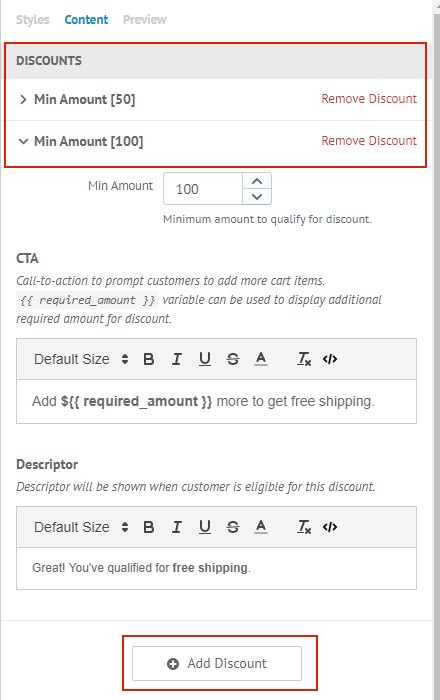
Go to Styles > Content > Discounts to add multi-tiers discounting. This allows you to go beyond offering free shipping to your customers and motivate them to add even more items to unlock more discounts. For example, you can configure discounting in the following manner:
- Free Shipping if Cart Amount is greater than $50
- Additional $10 Off if Cart Amount is greater than $100
One point to note that discounts are evaluated based on cart amount. We currently do not support discounting based on other attributes like number of cart items.
Preview Setup
Go to Styles > Preview to configure widget preview.
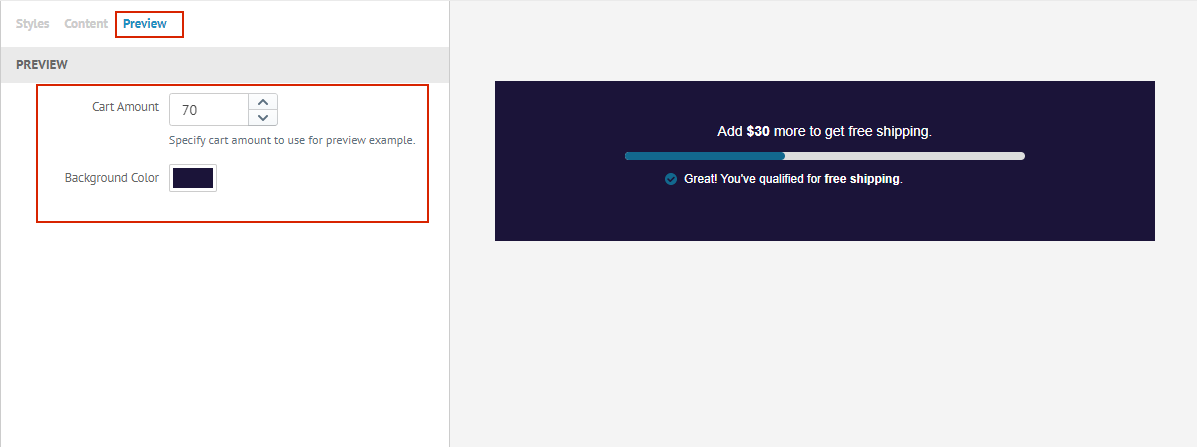
- Change
Cart Amountto see how progress bar changes based on different cart amount. - Change
Background Colorif you need to preview progress bar with non-visible text color like white.
Save to create AOV Progress Bar once everything is ready.
How to install widget?
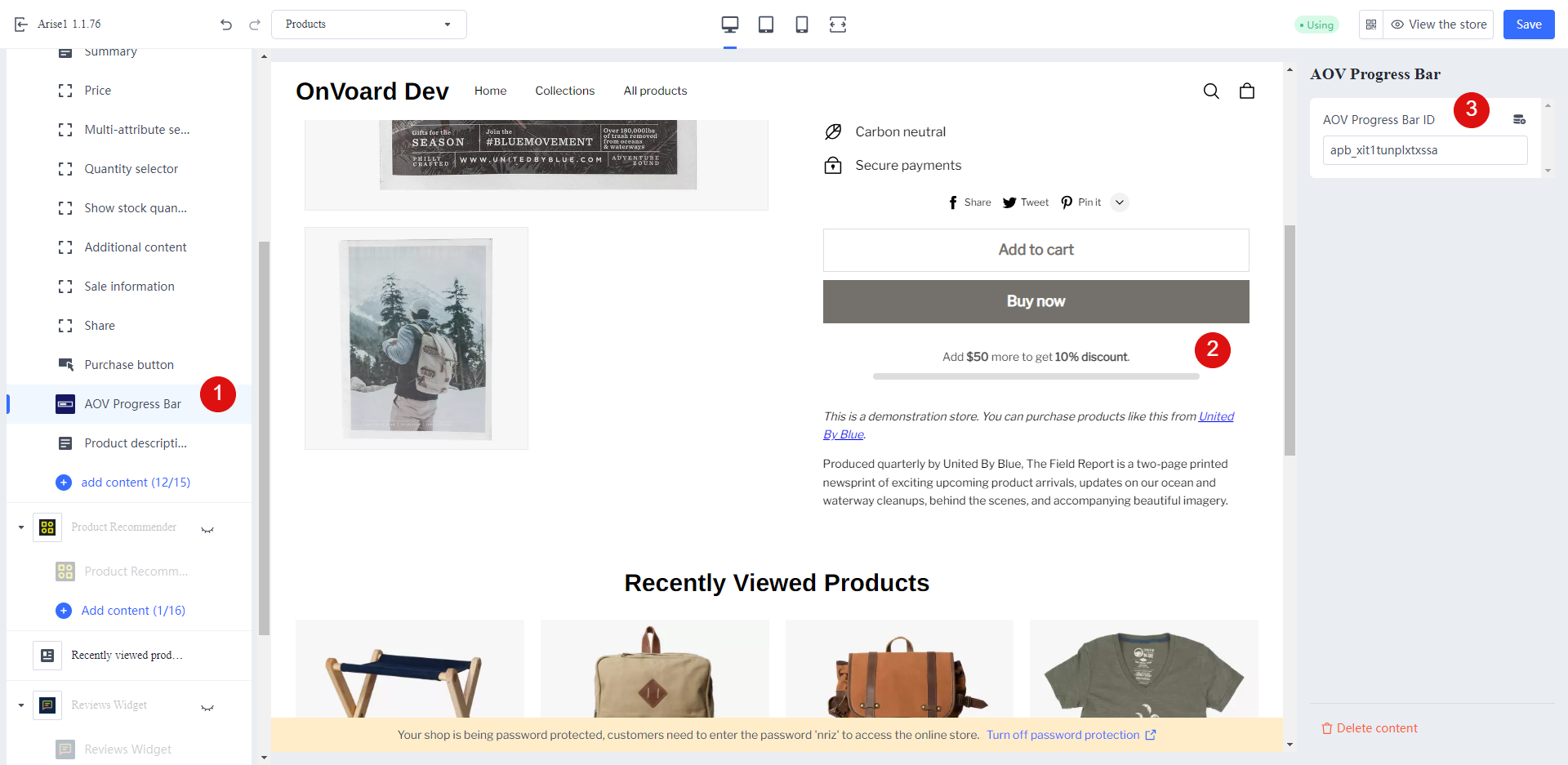
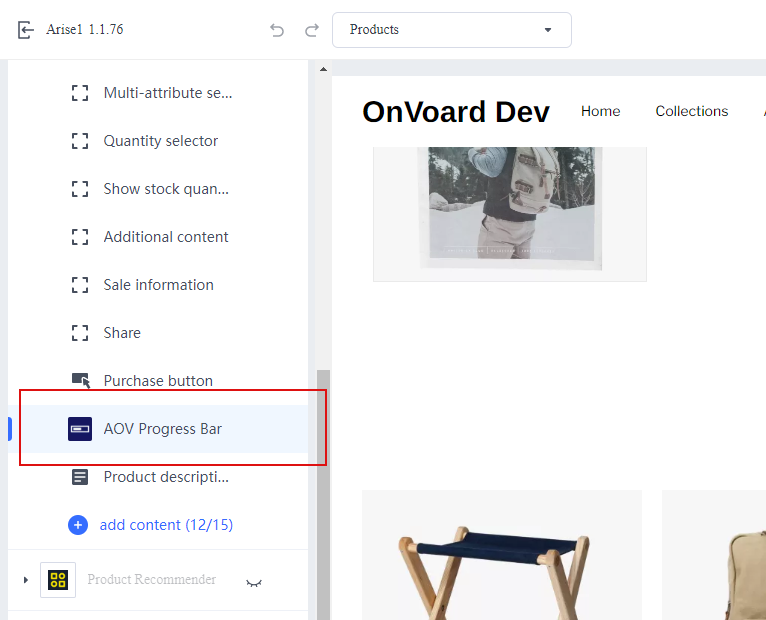
1) Go to your Shopline theme and add AOV Progress Bar app block.
2) For example, we can add it in product page after add cart button.
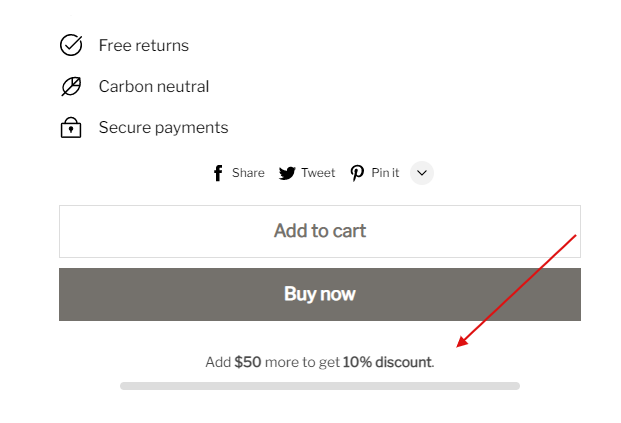
3) Specify ID for aov progress bar and save the theme.
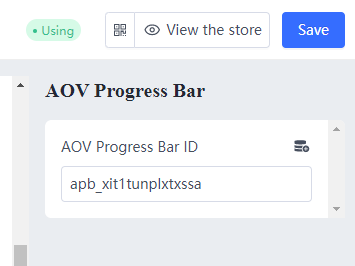
You can get ID from overview page.
Configure Discounting Rules from Shopline Admin
AOV Progress Bar will not alter any backend discounting rules that you have setup with Shopline. Follow links below to configure your store's discounting logic via Shopline Admin.