Use Multi-page Campaigns to Grow your Audience across Channels
Ask for an email and a phone number on the same screen and you'll get fewer of both. Ask for the email, give them the reward, then ask for the number as an optional extra, and the second ask costs you nothing. That's what pages are for. Each one does one thing, and a visitor who stops after the first has still given you something.
It's also how one campaign grows 2 audiences instead of one.
Managing campaign pages
Every campaign starts with one page. Open Manage Pages from the subheader whenever you want another. Drag rows to reorder them and rename each one so you can tell them apart later. Duplicate a page that's most of the way to what you need, or remove one you don't. You can't remove the last page. A campaign with nothing left on it isn't a campaign.
Click Add Page and choose how the new one starts. Start from Scratch gives you a blank page. Clone Existing Page copies one already in this campaign, styling included, which is usually faster than rebuilding a matching look by hand. Add Saved Page pulls in something you saved from a different campaign, once you've saved one to pull from.
Page-to-page buttons
A page on its own goes nowhere. Add a Button block and open its Action setting. Then pick a destination. Next Page is the simplest: it moves the visitor forward one step, and closes the campaign if that button happens to sit on the last page. Go to Page jumps straight to any page you name, so the flow doesn't have to run in a straight line.
The same Action list can also send a visitor to cart or checkout, or open a URL of your own or close the campaign outright.
A decline link next to a required field, a "No thanks" beside the main offer, needs one more setting: turn on Skip Form on that button. It lets the visitor move past the page without filling anything in, while your main button still enforces what's required. Whatever they already gave you on earlier pages stays with them, so nothing already collected gets lost along the way.
Branching pages by answer
A button isn't the only way to route someone. On a Radio or Choice Buttons question where a visitor can only pick one answer, give any option its own page to jump to.
"Vegan" lands on the vegan-friendly offer, "Not sure" lands on a follow-up question. Leave an option blank and it just continues the normal flow. It only works when one answer is picked at a time. Allow more than one, and there's no single page left to send someone to, so the setting doesn't show.
One channel per page
Here's the flow worth copying. Page 1 plays the game or makes the offer. The email ask and the reward come next, on page 2. Then page 3 asks for a phone number, clearly marked optional, with a skip link for anyone who'd rather not.
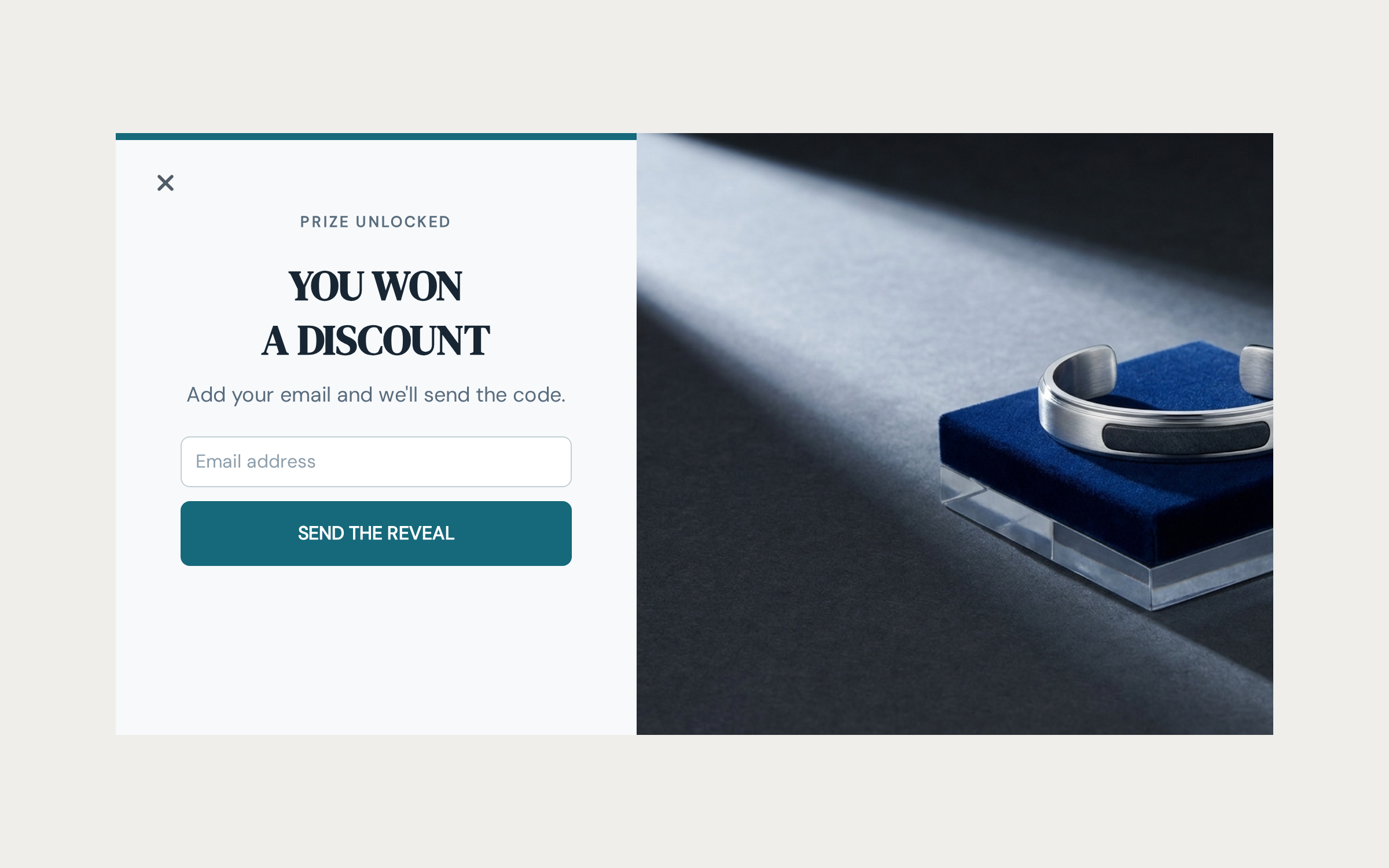
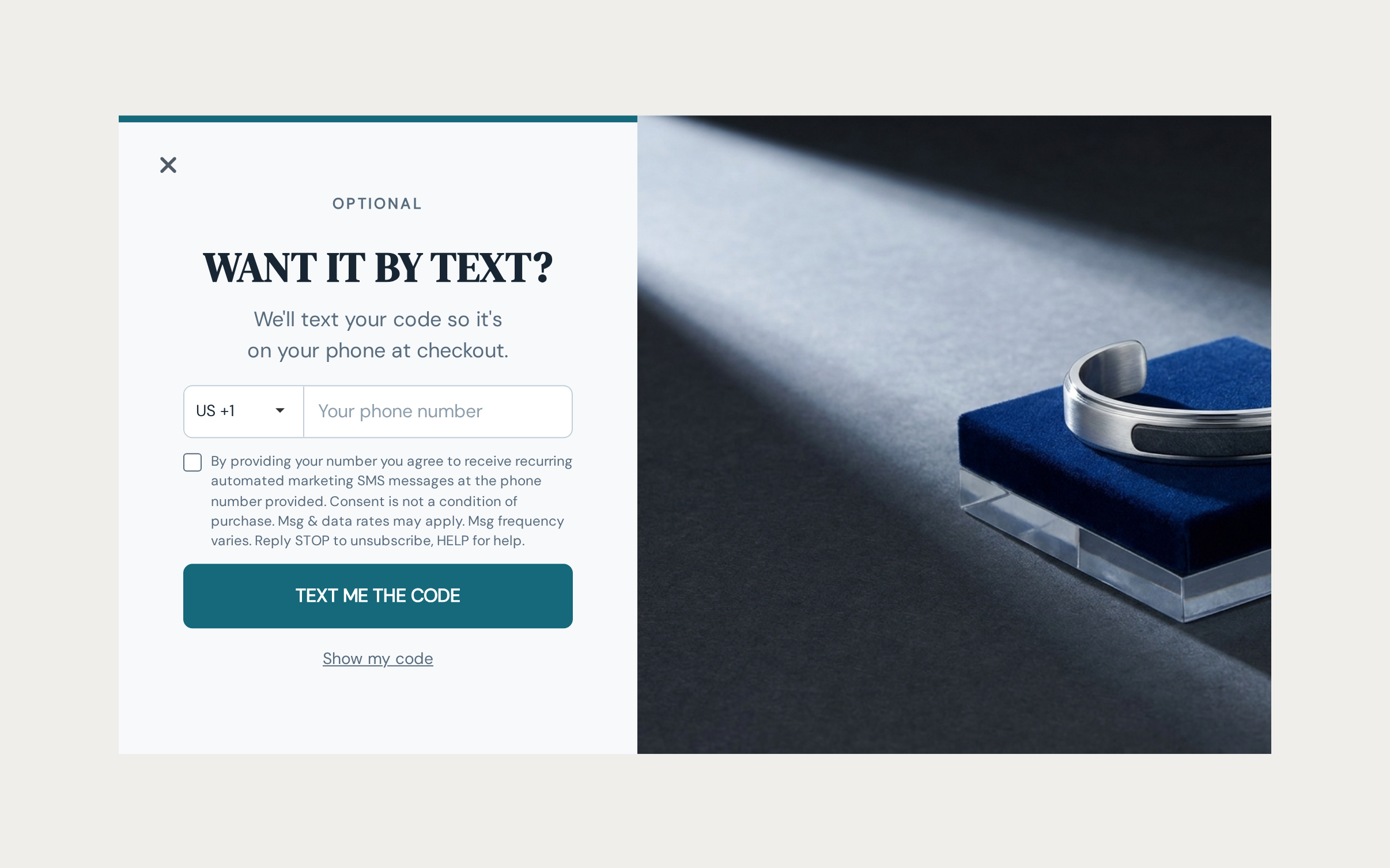
Notice what the second ask costs. Nothing. They've already given you the email and already have the reward, so a no on the phone page loses you nothing you'd collected. Everyone who says yes is a second channel you didn't have a moment ago, and SMS reaches people who never open email at all.
Ask for the email first, always
The order isn't cosmetic. A phone number on its own doesn't create a contact in OnVoard. Collect numbers without ever asking for an email, and you're left with responses you can't segment, email or build a workflow on. Put the email ask first and the number attaches to a real contact. See Phone Capture and SMS Consent for how the opt-in itself works.
Completion Filtering across pages
In the campaign editor, turn on Exclude Completed in Completion Filtering to hide the campaign from a visitor who's already been through it. On a multi-page campaign, you decide how far counts as done. Leave Completed Page blank and nothing gets hidden until the whole campaign is finished.
Pick a page instead and that becomes the finish line. Use the first capture page if an email is all you're after, or the reveal page if you only care that they got their code.
What "done" means on that page depends on what's on it. A page with a form field is done once a visitor submits it or takes the decline path with Skip Form. A page with nothing to fill in - a reveal, a thank-you - is done the moment a visitor reaches it. There's nothing to wait for.
What's Next
We recommend reading the following articles to further understand how you can work with a multi-page campaign.