
Ratings, NPS and surveys
The Rating element turns a page in your campaign into a one-tap survey question. Add it from Elements, under the Form group, then pick a style that fits what you're asking.
Get the block on the page first, then come back here for the part that actually decides whether visitors answer.
Which style fits your question
Which one should you use? Start with what you're actually asking.
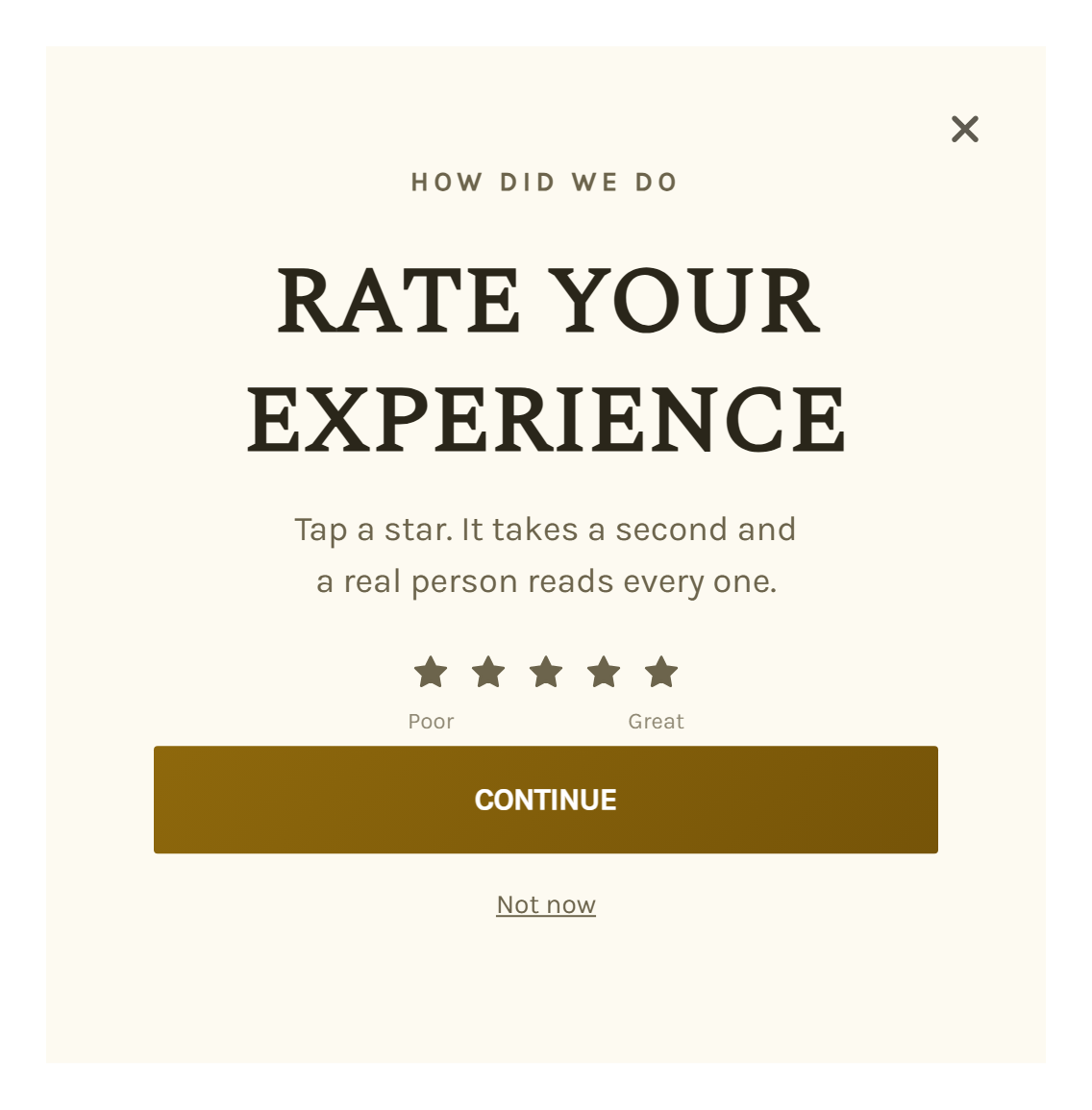
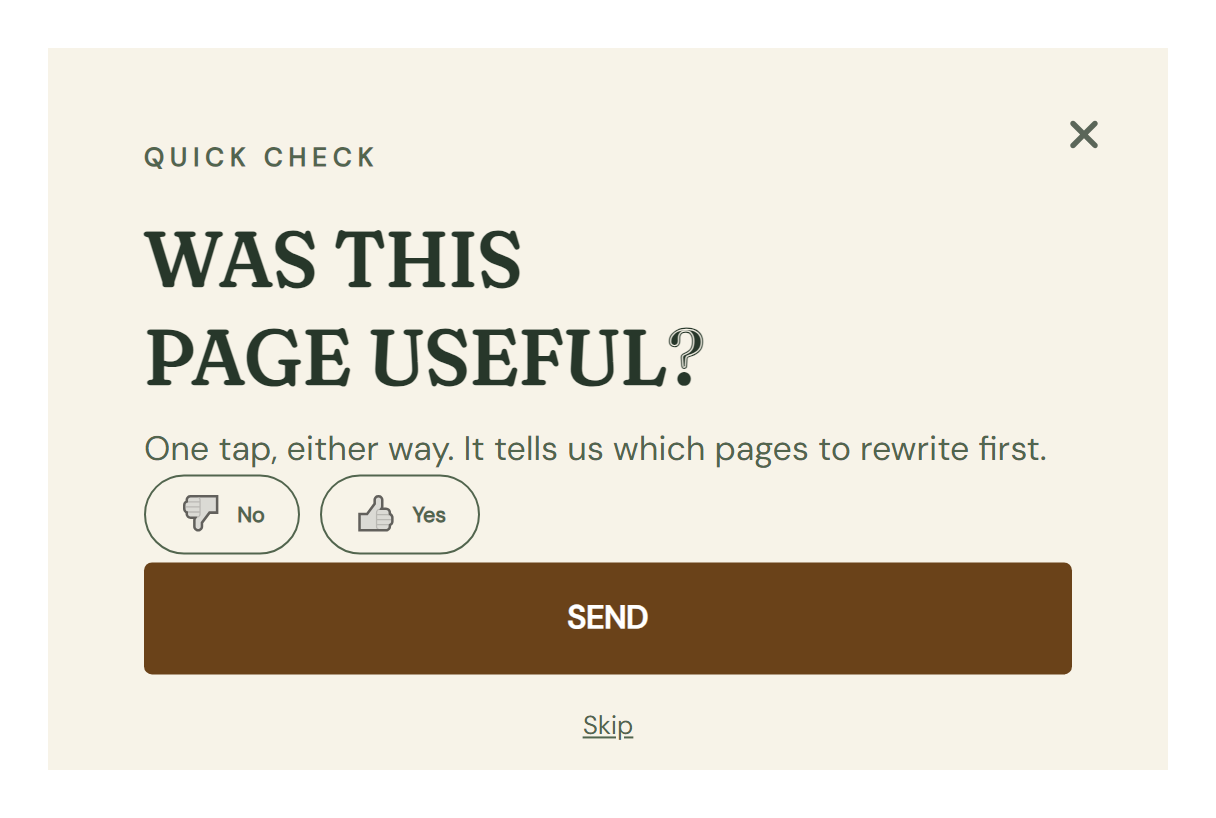
Stars and Thumbs are one-tap reactions. Ask them right after a single moment, a thank-you page, a game reveal, "was this helpful".
There's nothing to think about, so most visitors answer. Read the result back as a plain average or a percent positive.
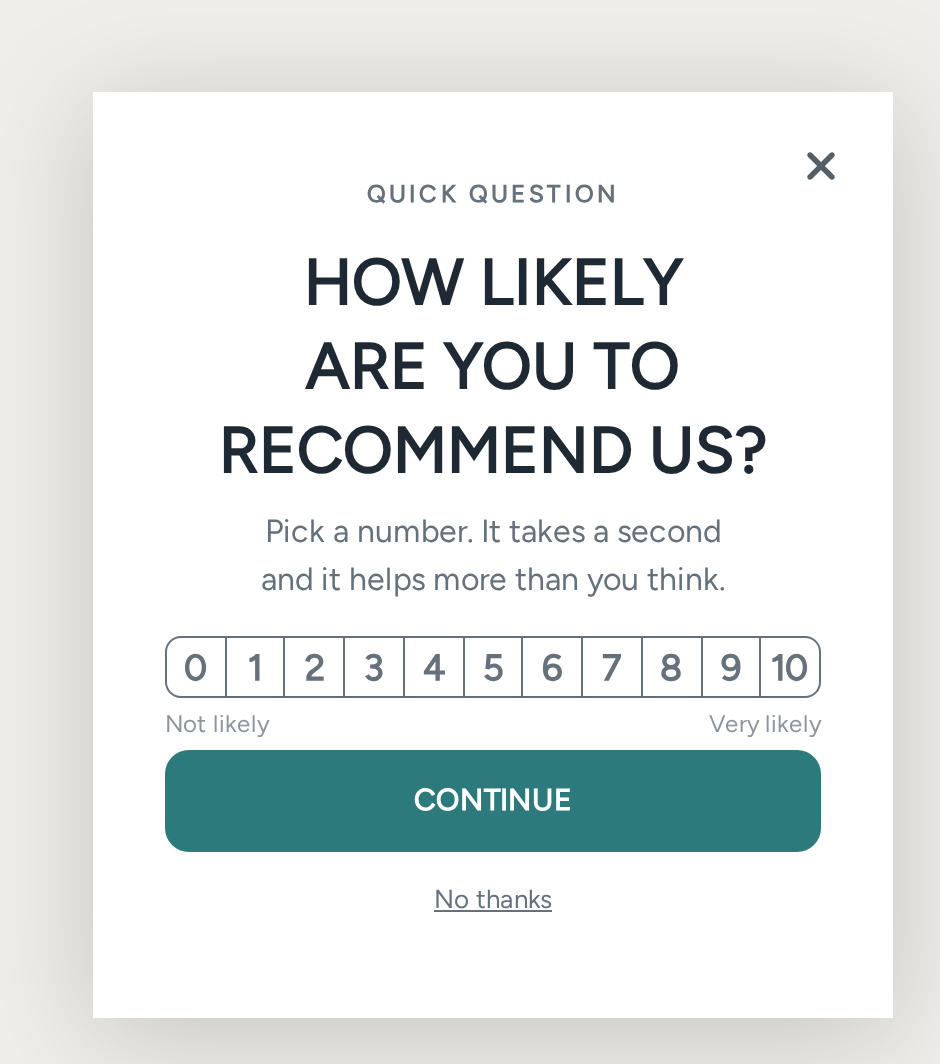
NPS is a different kind of question. "How likely are you to recommend us" isn't about the moment. It's about the whole relationship.
The promoter-versus-detractor math behind an NPS score needs a real spread of answers across its 11 points before that score means anything.
Save it for a relationship touchpoint, once a shopper's placed a few orders or a support ticket closes.
Skip it on a first-visit popup, where you'll only ever collect a handful of answers too small to trust.
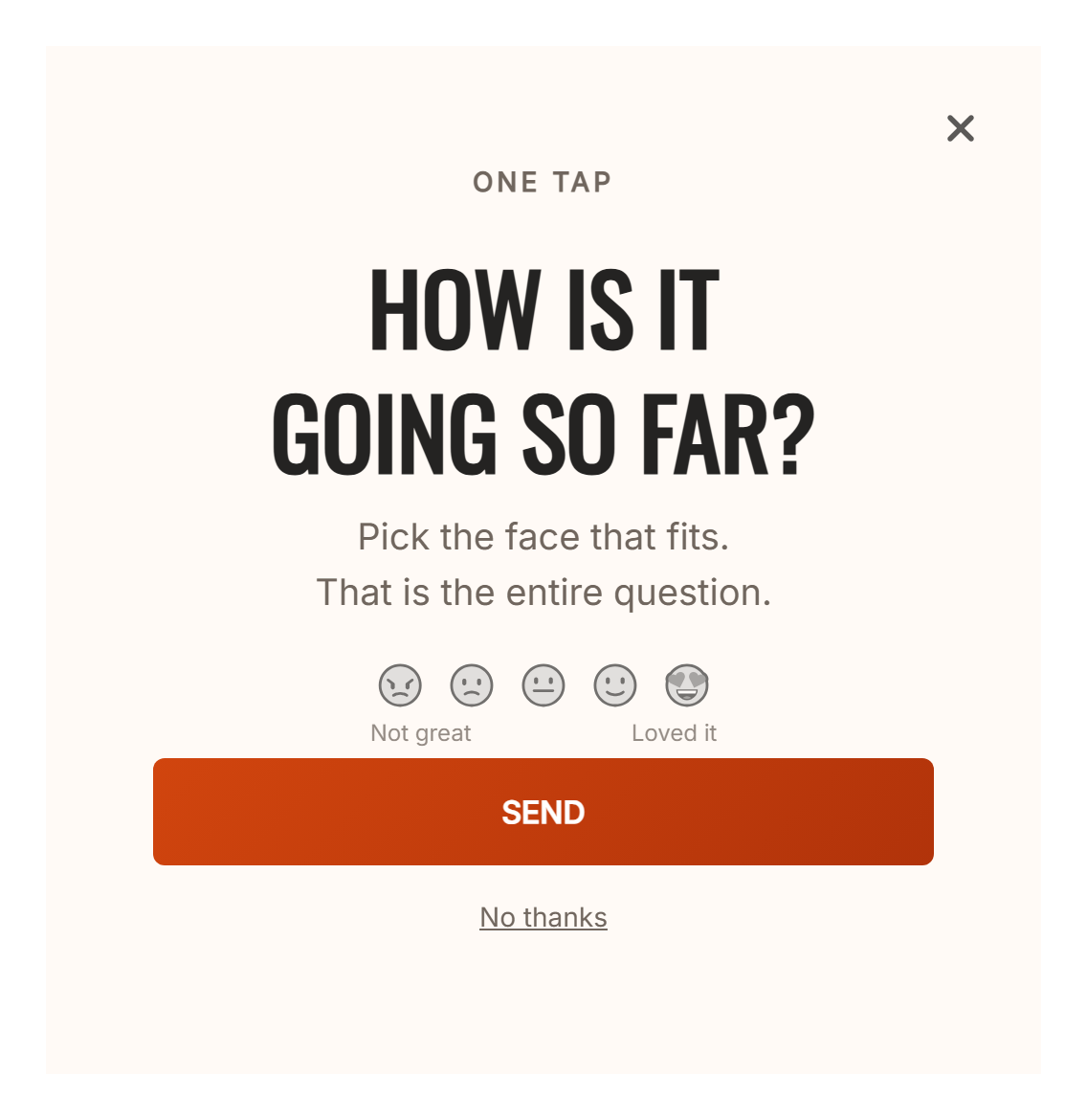
Emoji sits in between. It's a friendlier 5-point scale than stars, for a mood at a glance rather than a precise count.
Setting it up
Once the block is on the page, pick a Style. Then give it a Key, a short name like "nps" or "satisfaction" so you can recognize this question's answers later, and point a sync mapping at it.
Turn on Required if a visitor shouldn't be able to submit the page without answering.
The scale behaves differently per style. Stars default to 1 through 5, and you can widen that up to 10.
Emoji tops out at 5 points, since the face set only has 5 expressions. NPS is always fixed at 0 to 10. Thumbs has no range to set, it's simply down or up.
For Stars, Emoji and NPS, Low Label and High Label name both ends of the scale, and both are optional. Switch to NPS and OnVoard fills them in with "Not likely" and "Very likely" automatically, though you can change either.
Thumbs uses Down Label and Up Label instead. "No" and "Yes" by default, captured as 0 and 1 so an average reads as a positive share.
Turn on Show Live Results and a visitor sees the rolled-up result across every response so far, right after they answer.
It's off by default, so nothing shows unless you turn it on yourself.
Reading the answers
From Manage Campaigns, open the campaign and click View Responses. That button only shows up once the campaign has at least one response.
Each row shows what that visitor submitted, including the value under the Key you set. There's no built-in average or score breakdown in that table yet.
Click Export Responses for a CSV of every submission. Work the average, or the NPS math, out yourself in a spreadsheet.
Or hand the export to whoever on your team owns that number, and let them work out what it means.
What's Next
We recommend reading the following articles to further understand how you can work with what a campaign collects.